What Is Sideloading on Android? Benefits, Risks and Safer Options
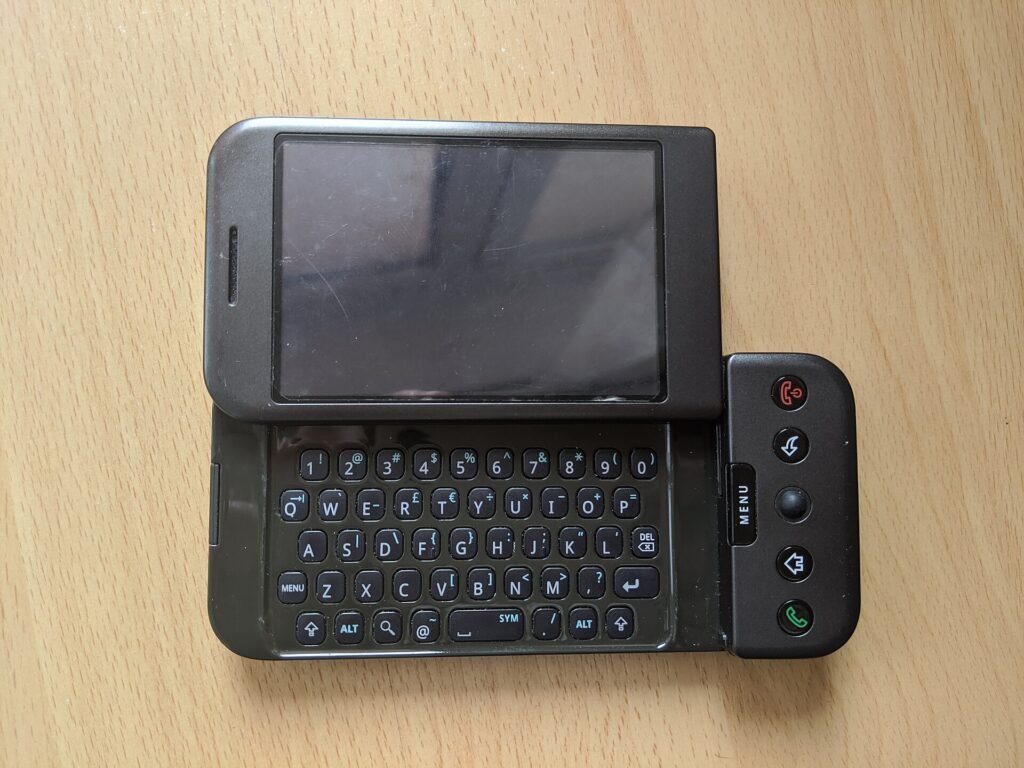
Image: Fumquat, CC BY-SA 4.0, via Wikimedia Commons
Sideloading means installing an Android app from somewhere other than the app store that came with your phone. It is a normal Android capability, and it is also the route most Android malware takes to reach people. This guide explains why people do it, what can go wrong, how Android protects you and what the safer alternatives are.
Why people sideload
- Regional gaps. An app may not be offered in your country or on your phone model.
- Older versions. A newer release may drop support for your Android version or remove a feature you liked.
- Beta and test builds. Developers often share pre-release builds directly with testers.
- Other app stores. Open-source stores such as F-Droid and some manufacturer stores distribute apps outside Google Play.
- Work apps. Companies sometimes distribute internal apps without publishing them publicly.
What can go wrong
- Malware. A file from an unknown site has had no store review. Fake copies of popular apps are common.
- Tampering. A genuine app can be repackaged with extra code that shows ads or steals data.
- Missed updates. Apps installed by hand may not update automatically, so security fixes can pass you by.
- Piracy. Cracked or modified copies of paid apps break the developer’s terms and are a frequent malware carrier.
- Weak privacy. You have less recourse if an app misuses your data.
How Android protects you
Android asks you to grant the install permission to one app at a time, as covered in our installation guide. Google Play Protect can scan apps from other sources, and newer versions of Android restrict sideloaded apps from enabling powerful features such as accessibility access until you explicitly allow it in the app settings. Our guide to Play Protect covers what the scanner does.
Google’s developer verification plan
Google has announced that apps installed on certified Android devices will need to come from developers who have verified their identity, including apps installed outside Google Play. According to Google’s announced timeline, the requirement begins in September 2026 in Brazil, Indonesia, Singapore and Thailand, with a global rollout planned from 2027. Google has said that sideloading is staying and that the check confirms who the developer is rather than reviewing what the app does. The details can change, so check the Android Developers site for the current status in your country.
Safer ways to get an app
- Use Google Play when you can. It handles updates and signatures for you.
- Use the developer’s own site. For apps that are not on Play, the official site is the best source.
- Use a reputable alternative store. Open-source stores publish how apps are built and verified.
- Check before you install. Follow our seven safety checks for any file you download.
A sensible sideloading routine
- Confirm the source and the package name.
- Check that your phone is supported (see how).
- Download, compare the size and version, and scan the file.
- Allow the install for one app only, install, then switch the permission off.
- Review the app’s permissions.
Frequently asked questions
Is sideloading illegal?
No. It is a normal Android feature. Distributing or using pirated copies of paid apps is the illegal part.
Does sideloading void my warranty?
Installing an APK does not normally affect a warranty. Rooting or unlocking the bootloader is a different matter and can.
Is sideloading safe if I scan the file?
Scanning helps, but it is one check among several. Source, signature and permissions matter just as much.