How to Back Up Android App Data Before You Reinstall or Switch Phones

Image: Alejandro Escamilla alejandroescamilla, CC0, via Wikimedia Commons
Reinstalling an app, resetting a phone or moving to a new handset can wipe more than you expect: game progress, chat history, two-step verification codes and files that never reached the cloud. A few minutes of preparation prevents nearly all of that. This guide explains what Android backs up for you, what it does not and how to protect the things that matter most.
What Android backs up automatically
Most Android phones can back up to your Google account. Depending on your phone, that can include your list of installed apps, some app data, call history, contacts, device settings and text messages, and photos through Google Photos. Check what is switched on under Settings, Google, Backup (or search the settings for Backup).
The important detail is that app data is only backed up for apps whose developers support it. Many games and tools keep progress on the device, so uninstalling them can delete it. Look for a cloud save, account login or sync option inside the app itself.
What to check before you uninstall or reset
| What | How to protect it | Notes |
|---|---|---|
| Photos and videos | Google Photos backup, or copy to a computer over USB | Open a few on another device to confirm |
| Contacts | Sync with your Google account | Check the sync toggle for Contacts |
| Text messages | Google backup on supported phones | Chat apps such as WhatsApp have their own backup |
| App data and game progress | Cloud save, account login or in-app backup | Not every app supports it |
| Authenticator codes | Use the app’s transfer or export feature | Do this before wiping or switching |
| Downloads and documents | Copy folders to a computer or cloud storage | Installers can be skipped |
Do not lose your two-step verification
Authenticator apps are the most common reason people get locked out after a phone change. Many authenticator apps let you transfer accounts to a new phone, and most services give you backup codes when you set up two-step verification. Save those codes somewhere safe before you wipe anything, and keep the old phone until you have confirmed that every account works on the new one.
Backing up by cable
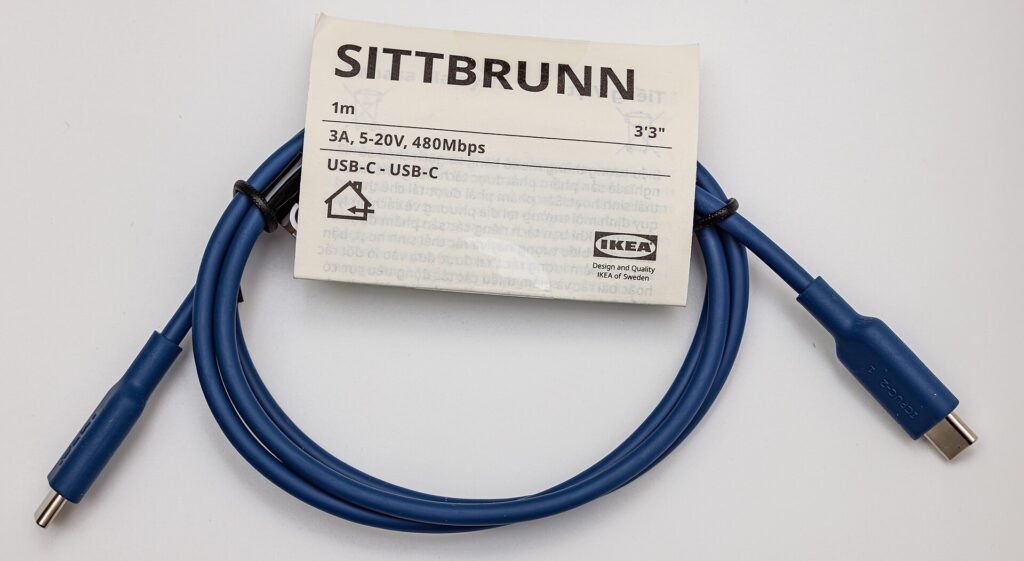
- Connect the phone to a computer with a USB cable and unlock it.
- Pull down the notification shade, tap the USB notification and choose File transfer.
- Open the phone in your computer’s file manager and copy DCIM (photos), Pictures, Download and Documents to a folder on the computer.
- Check that the file count and size match before you delete anything on the phone.
Do not rely on the old adb backup command. Google has deprecated it and it does not work for most apps on modern Android.
Reinstalling a single app
- Open the app and look for a sync, cloud save or backup option. Turn it on and wait for it to finish.
- Make sure you know the login you used, including any password or recovery email.
- Uninstall and reinstall the app, then sign in and check that your data came back.
- If you are replacing an APK with a newer build signed by the same developer, installing over the old one keeps your data. See our troubleshooting guide if the install fails.
Moving to a new phone
During first setup, Android offers to copy apps and data from your old phone using a cable or a Google account. Use it, then go through the table above to confirm that photos, contacts, messages and authenticator accounts all arrived. Banking apps often need to be set up again, so keep your card or login details handy.
Frequently asked questions
Will clearing an app’s cache delete my progress?
No. Clearing the cache removes temporary files. Clearing data resets the app, so back up first.
How often should I back up?
Leave Google backup and photo backup switched on so they run automatically, and make a manual copy before any reset, major update or phone change.
Can I back up apps themselves?
You can reinstall most apps from Google Play, so the app files rarely need backing up. Your data is what matters, and that depends on each app’s own backup or sync.
Before you reinstall anything from a file, read how to install an APK safely.