How to Make an Older Android Phone Run Games Better
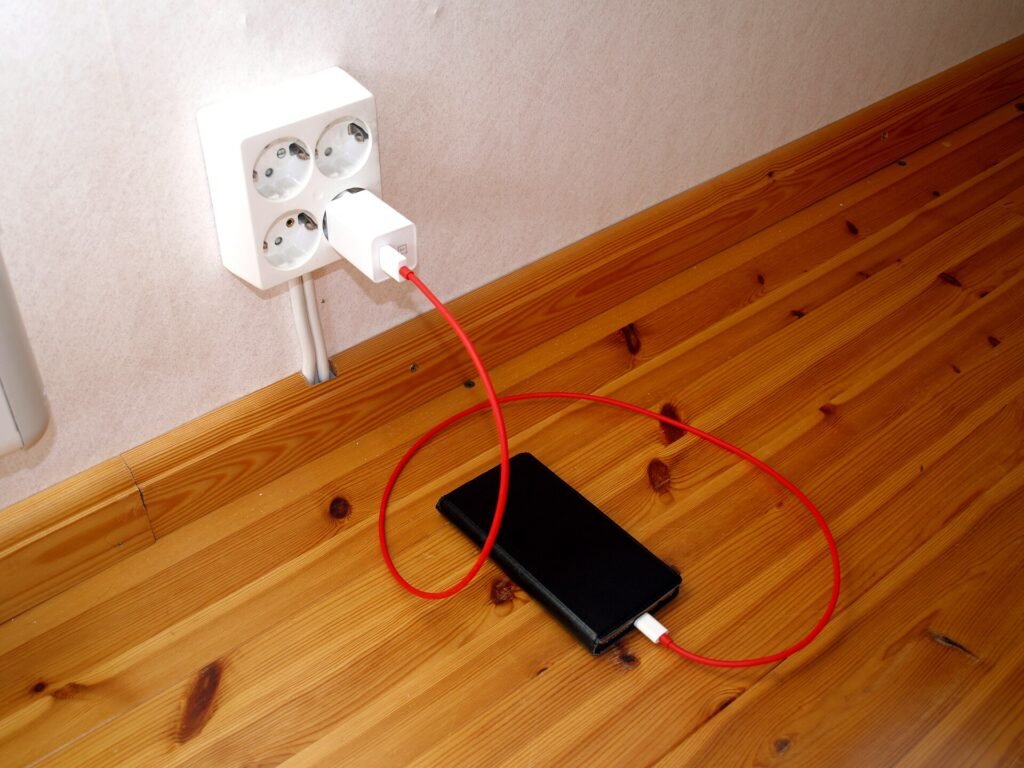
Image: Santeri Viinamu00e4ki, CC BY-SA 4.0, via Wikimedia Commons
An older Android phone can still play plenty of games if you set expectations and make a few sensible changes. You cannot turn a budget phone from a few years ago into a flagship, but you can often win back smoother frame rates, shorter loading and fewer crashes. This guide covers what actually helps and what to ignore.
Start with realistic expectations
Games are limited by three things: the processor, the memory and the storage speed. Heavy 3D titles need all three. Before downloading a demanding game, read the Requires Android line and the store description, and compare your Android version using this guide. If the game barely meets the minimum, expect low settings and the occasional stutter.
Free up storage and memory first
- Keep several gigabytes of storage free. A nearly full phone slows down installs, updates and loading. Our guide to freeing up storage shows how.
- Close apps you are not using before you start a game, especially social apps and browsers with many tabs.
- Restart the phone once a week so memory is released and background processes reset.
Update the phone and the game
Updates often include performance fixes. Check Settings, System, System update, and update the game and Google Play services through the Play Store. If a new game update runs worse than the old one, look at recent reviews before installing it.
Lower the graphics inside the game
This is the change that matters most. Open the game’s settings and try these in order:
- Set graphics quality to low or medium.
- Lower the frame rate target if there is an option, since a steady lower rate feels smoother than a rate that keeps dropping.
- Turn off shadows, anti-aliasing and special effects.
- Reduce resolution if the game allows it.
Use the phone’s performance tools
Many phones have a game mode or performance mode in settings, and Android 12 and newer offer a Game Dashboard for supported games. These can silence notifications and prioritise the game. Battery saver modes usually reduce performance, so turn them off while you play and plug in for long sessions if the phone stays cool.
Keep the phone cool
Phones slow down when they get hot to protect the hardware. Take off a thick case, avoid playing in direct sun and avoid heavy gaming while fast charging. If the phone feels hot, take a break rather than pushing through.
Improve your connection for online games
Lag in online games is often a network problem rather than a phone problem. Use a strong Wi-Fi signal, prefer the 5 GHz band if your router offers it, stay close to the router and pause large downloads on other devices.
Things that do not help
- RAM booster and cleaner apps. Android manages memory itself, and these apps often add ads or drain the battery.
- Disabling system apps. It can break features without making games faster.
- Unverified modified game files. They are a common source of malware. See our safety checklist.
When it is time to upgrade
If games crash often even on the lowest settings, the phone no longer receives security updates or the storage is full of data you cannot remove, a newer phone is a better fix than more tweaking. For casual and idle games, an older phone usually remains fine for years.
Frequently asked questions
Does a factory reset speed up a phone?
It can, because it clears accumulated clutter, but it is a last resort. Back up first using our backup guide.
Will changing animation settings help?
Setting the animation scales to 0.5x in Developer options can make the interface feel quicker, but it does not change game performance.
Is more RAM always better?
More memory helps with heavy games and multitasking, but the processor and storage speed matter as well. Check what the game recommends rather than relying on one number.
Looking for something light to play? Browse our games library.